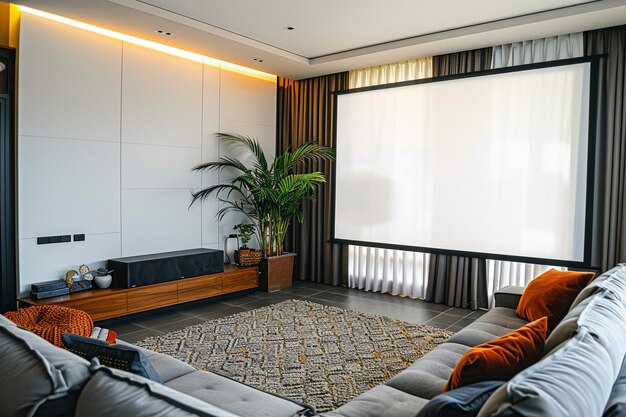
How to Set Up a Home Theater System at Home (Step‑by‑Step)
Setting up a home theater system can feel intimidating: wires everywhere, confusing settings, and a dozen different connection options. The good news is that most home theater setups follow the same basic pattern. Once you understand that pattern, the rest is just matching it to your room, your budget, and how picky you are about sound and picture quality.
This guide walks through the core concepts, the main choices you’ll face, and the tradeoffs between simple and advanced setups—so you can decide what fits your home and your comfort level.
What Is a Home Theater System, Really?
At its core, a home theater system is just a way to:
- Show video on a big screen (TV or projector)
- Play sound through speakers that are better than your TV’s built-in audio
- Connect your devices (streaming box, game console, cable box, Blu-ray, etc.) in a way that’s easy to use
Most setups have four main parts:
- Display – TV or projector + screen
- Audio – Soundbar, speakers, or full surround system
- Receiver or hub – Something that connects everything (AV receiver, soundbar, or the TV itself)
- Sources – Streaming devices, game consoles, set-top boxes, media players, etc.
Your setup can be as simple as a TV + soundbar or as complex as a dedicated room with a projector and 7+ speakers. The “right” setup depends heavily on your:
- Room size and shape
- How much you care about sound vs. picture vs. simplicity
- Willingness to deal with wires and settings
- Budget and upgrade goals over time
Step 1: Decide Where Your Home Theater Will Live
Before you buy or plug in anything, your room sets most of the rules.
Key Room Factors That Affect Your Setup
Room size
- Small room: a soundbar or simple 3.1 / 5.1 system can be plenty.
- Medium to large room: a bigger TV or projector and more powerful speakers can make a difference.
Shape and layout
- Rectangular rooms are usually easier for speaker placement.
- Open-concept spaces can be harder for surround sound because sound “leaks” into other areas.
Walls and surfaces
- Hard surfaces (tile, empty walls, glass) reflect sound → can sound echoey.
- Softer rooms (carpet, curtains, couches, rugs) usually sound more natural.
Light control
- Bright rooms with big windows: TVs generally work better than projectors during the day.
- Darker rooms: projectors can feel more “cinema-like.”
You don’t have to redesign your room—but knowing these limits helps you choose between a TV vs. projector and soundbar vs. speaker system.
Step 2: Choose Your Display – TV vs. Projector
Both can work in a smart home theater. The better choice depends on how you watch and where.
TV vs. Projector at a Glance
| Feature | TV | Projector + Screen |
|---|---|---|
| Best for | Everyday viewing, mixed lighting | Big-screen movie nights, dark rooms |
| Typical size range | Medium to large (diagonal) | Very large screens |
| Bright rooms | Handles well | Needs controlled light for best quality |
| Setup complexity | Simple: plug and play | More complex: placement, screen, cabling |
| “Cinema” feel | Good | Strong, especially with large screen |
Variables That Shape Your Choice
- Viewing distance: Farther back? A larger screen might feel more immersive.
- Natural light: Lots of daytime watching in a bright room usually favors a TV.
- Mounting options:
- Wall-mount TV vs. TV stand
- Ceiling-mount projector vs. shelf or back wall
- Smart features:
- Many TVs are smart TVs with built-in apps.
- Projectors may or may not be smart—you may need a separate streaming device.
For most people, a modern TV plus better sound is the easiest starting point. A projector often makes sense if you’re building a dedicated entertainment room and can control the light.
Step 3: Pick Your Audio: Soundbar vs. Surround Sound System
This is the part that makes movies and games feel “big.” There are three main paths:
1. Soundbar (Simplest)
A soundbar is a long speaker that sits under your TV, often with a wireless subwoofer.
Pros
- Easy to set up (usually one cable to the TV)
- Big upgrade over TV speakers
- Minimal clutter and wires
- Many support Dolby Atmos, Bluetooth, and voice assistants 🔊
Cons
- Not as immersive as a true multi-speaker setup
- “Virtual surround” depends a lot on room shape and acoustics
Good for: Small to medium rooms, people who want simple, cleaner setups and a noticeable audio upgrade.
2. 3.1 or 5.1 Surround System (Balanced Option)
A traditional home theater in a box or separate speakers with an AV receiver typically include:
3.1 – Left, center, right speakers + subwoofer
5.1 – Adds two surround speakers behind or to the side
Pros
- More realistic sound placement (dialogue in center, effects around you)
- Can be upgraded over time
- Works well in many living rooms
Cons
- More wires and more setup
- Requires space for speakers and a receiver
Good for: People who want true surround sound but don’t need a super complicated system.
3. Advanced Surround (5.1.2, 7.1, Atmos, etc.)
This adds more speakers, often including height channels for overhead effects (like rain or planes).
Pros
- Very immersive, especially for modern movie soundtracks and games
- Great for a dedicated home theater room
Cons
- More speakers, more complexity, more cable runs
- Room layout matters a lot for correct placement
Good for: Enthusiasts, gamers, and movie fans willing to tune and tweak for the best experience.
Step 4: Understand the Role of the AV Receiver or Hub
You need a “brain” that connects everything: your TV, speakers, and input devices.
There are three common setups:
Option A: TV as the Hub (HDMI ARC/eARC)
- Your devices (streaming box, console, etc.) plug directly into the TV.
- A soundbar or AV receiver connects to the TV via HDMI ARC or eARC.
- The TV sends audio to your soundbar or receiver.
Pros
- Simple wiring
- TV remote often controls volume and input switching
Cons
- Depends on your TV’s audio capabilities (e.g., what surround formats it can pass through)
Option B: AV Receiver as the Hub
- All devices plug into the AV receiver (Blu-ray, game console, streaming box).
- One HDMI cable goes from the receiver to the TV.
Pros
- Receiver handles audio formats and speaker control
- Fewer cables going to the TV
- Often more flexible and powerful
Cons
- More setup and more settings to learn
- Receiver adds another box to your cabinet
Option C: Soundbar as the Hub
- Some soundbars have multiple HDMI inputs.
- You plug devices into the soundbar, then run one HDMI to the TV.
Pros
- Less complex than a receiver, more flexibility than TV-only
- Can simplify remote and switching
Cons
- Usually fewer inputs and fewer advanced settings than a receiver
Your choice depends on whether you want maximum simplicity (TV or soundbar as hub) or maximum control and expandability (AV receiver).
Step 5: Connect Everything (Typical Wiring Patterns)
Here’s how a basic smart home theater might be wired.
Common Connection Terms
- HDMI: Main digital audio/video cable. Look for HDMI ports on TV, receiver, soundbar, and devices.
- HDMI ARC/eARC: Special HDMI port that sends audio from TV to sound system.
- Optical (TOSLINK): Digital audio cable used when HDMI ARC isn’t available or compatible.
- Speaker wire: Bare wire for traditional speakers connected to an AV receiver.
Example 1: TV + Soundbar + Streaming Device
- Connect soundbar HDMI (ARC/eARC) → TV HDMI (ARC/eARC).
- Connect your streaming box or console → another HDMI input on the TV.
- Enable ARC/eARC and external speakers in your TV’s audio settings.
- Turn off or reduce the TV’s internal speakers if needed.
Example 2: TV + AV Receiver + Multiple Devices
- Connect AV receiver HDMI Out → TV HDMI In (preferably ARC/eARC).
- Connect devices (console, Blu-ray, streaming box) → different HDMI In ports on the receiver.
- Connect speakers to the receiver using speaker wire, matching positive/negative and channels (front, center, surround).
- Run the receiver’s auto-calibration (often with a small microphone) to balance sound levels.
Example 3: Projector + Receiver + Speakers
- Mount the projector and connect AV receiver HDMI Out → projector HDMI In.
- Connect all sources (streaming, console, etc.) to the receiver.
- Run speaker wires from receiver to your speakers.
- Aim projector, adjust focus, and fine-tune the image on your screen.
Step 6: Place Your Speakers for Better Sound
You don’t need a perfect textbook layout, but basic placement helps a lot.
Typical 5.1 Speaker Layout
- Front left/right: On either side of the TV, roughly ear height when seated.
- Center: Directly under or above the TV, aimed at the seating position (handles most dialogue).
- Surround left/right: Beside or slightly behind your main seating, at or just above ear level.
- Subwoofer: Near a wall or corner for stronger bass; exact spot depends on your room.
Variables that affect placement:
- Furniture layout: Where your couch and TV can realistically go.
- Walls and openings: Whether you have side walls to mount speakers.
- Neighbors: If you share walls, heavy bass may be an issue.
Even small tweaks (like angling speakers toward the seating area) can noticeably improve clarity.
Step 7: Integrate Smart Home Features 🧠
If you’re building this as part of a smart home system, you’ll likely want:
- Smart TV or streaming device with apps (Netflix, YouTube, etc.)
- Smart speakers or voice assistants (e.g., for “Turn on movie mode” commands)
- Smart lighting that can dim automatically for movie nights
- Universal remote or app control to reduce remote clutter
How deep you go depends on:
- Which smart ecosystem you already use (for example, whether your lights, speakers, and TV can talk to the same assistant)
- Your comfort with automation setup
- Whether you want one‑tap (or voice) control scenes like:
- “Movie time” → lights dim + TV on + receiver to correct input
- “Game night” → TV to game console input + sound mode adjusted
Most major smart home platforms support basic home theater scenes, but the exact steps depend on your devices.
Step 8: Calibrate Picture and Sound
Out of the box, many TVs and receivers are set to eye-catching store modes, not natural home viewing. A few basic adjustments can make a noticeable difference:
Picture Settings
- Choose a picture mode that looks more natural (often called “Cinema,” “Movie,” or “Filmmaker” mode).
- Adjust:
- Brightness and contrast so you can see detail in both dark and bright areas.
- Color so skin tones look realistic, not overly saturated.
- Motion smoothing (sometimes called “soap opera effect”) – many people prefer this minimized or off for movies.
Sound Settings
- Run the receiver or soundbar’s auto-setup or room calibration if available.
- Balance:
- Center channel level so dialogue is clear at normal volumes.
- Surround levels so effects are immersive but not distracting.
- Subwoofer so bass is full but not overpowering.
You don’t have to chase perfection—just aim for settings that feel comfortable for your room and your eyes/ears.
Common Home Theater Setup Questions
Do I really need an AV receiver?
Not always. Many people are happy with:
- A soundbar connected to the TV, or
- A smart TV + external speakers into a simpler audio system
An AV receiver becomes more attractive if you:
- Want true surround sound with separate speakers
- Need multiple HDMI inputs and advanced audio formats
- Plan to upgrade speakers over time
What’s the difference between ARC and eARC?
ARC (Audio Return Channel):
- Sends audio from TV → soundbar/receiver over HDMI.
- Typically supports standard surround formats.
eARC (Enhanced ARC):
- Higher bandwidth version of ARC.
- Supports more advanced audio formats (like higher-quality Dolby Atmos) depending on your devices.
If both your TV and audio system support eARC, it can give you more flexibility with sound formats, but standard ARC is fine for many setups.
Can I use wireless speakers for home theater?
Yes, but with caveats:
- Some soundbars offer wireless rear speakers and/or wireless subwoofers (they still need power outlets).
- There are wireless surround systems available, but they may:
- Lock you into one brand’s ecosystem
- Add slight latency if not well designed
Purely wireless, fully interchangeable surround setups are still less common than wired speaker + receiver systems.
How big should my TV or screen be?
There isn’t a single “right” size. Consider:
- Viewing distance: Farther away typically feels better with a larger screen.
- Room layout: Whether a big screen will overpower a small room or block windows.
- Personal preference: Some people love the “wall of image” feel; others prefer something more subtle.
Most people land on a size that feels immersive but comfortable from their main seating distance.
What You’ll Need to Decide for Yourself
You now have the framework. To tailor it to your situation, you’ll need to think through:
- Your room
- Size, shape, light, and furniture layout
- Your priorities
- Simplicity vs. flexibility
- Sound quality vs. picture size vs. cost
- Your comfort with tech
- Plug-and-play soundbar vs. multi-speaker receiver system
- Your smart home ecosystem
- Which devices you already own and which apps/assistants you prefer
- Your future plans
- One-and-done setup vs. something you might gradually expand (add subwoofer, more speakers, projector later)
Once you’re clear on those pieces, the actual setup steps—mounting the TV or projector, placing the speakers, connecting HDMI cables, and running basic calibration—are mostly straightforward. The best home theater system is the one that fits your space, your habits, and your tolerance for complexity, not just the most expensive or feature-packed option on paper.