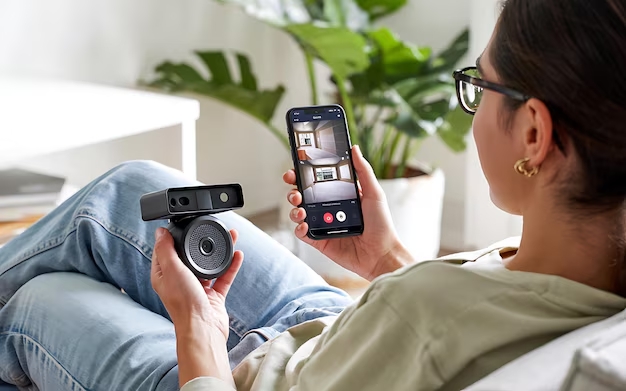
How to Set Up a Smart Home Security System (Step‑by‑Step FAQ)
Smart home security can be as simple as a video doorbell or as involved as whole‑home sensors, smart locks, and automated lighting. The “right” setup depends a lot on your home, your budget, and how hands‑on you want to be.
This FAQ walks through the most common questions people have when figuring out how to set up a smart home security system, what devices to use, and how they all work together.
What is a smart home security system, in plain English?
A smart home security system is a group of connected devices that help you:
- See what’s happening in and around your home
- Get alerts on your phone when something seems off
- Control locks, lights, and alarms remotely
These devices usually connect through:
- Wi‑Fi (most common for cameras, doorbells, and apps)
- A hub or base station (sometimes using Zigbee, Z‑Wave, or proprietary wireless signals)
- A mobile app or web dashboard where you control everything
Instead of a single “box,” smart security is usually a mix of devices, such as:
- Video doorbells
- Indoor and outdoor cameras
- Door/window sensors
- Motion detectors
- Smart locks
- Sirens/alarms
- Smart lights and plugs
You can build this in two main ways:
- DIY systems – You buy devices, set them up, and monitor things yourself via app notifications.
- Professional systems – Often sold as a package, with professional installation and optional 24/7 monitoring.
What are the main pieces of a smart security setup?
Here are the core device types you’ll see over and over:
| Device type | What it does | Typical use |
|---|---|---|
| Video doorbell | Shows who’s at your door, sends alerts, often two‑way audio | Packages, visitors, porch pirates |
| Security cameras | Record video; may detect motion, people, or packages | Indoor monitoring, driveway, backyard, side yards |
| Door/window sensors | Detect when doors or windows are opened | Entry points, vulnerable windows |
| Motion sensors | Detect movement in a room or area | Hallways, main living spaces, large rooms |
| Smart locks | Lock/unlock via app or code; track activity | Front door, back door, garage entry |
| Siren/alarm | Makes loud noise during an alarm event | Scaring off intruders, alerting neighbors |
| Smart lights/plugs | Turn on/off automatically or remotely | Simulated occupancy, lighting up entries on detection |
| Hub/base station | Connects and manages multiple devices; sometimes has a siren | Central brains of many all‑in‑one systems |
You don’t need all of these to “have a system.” Many people start with 1–3 devices and expand.
What should I decide before buying anything?
Before you click “add to cart,” there are a few big decisions that shape everything else:
1. DIY vs. professionally installed
DIY smart security
- You buy and set up the devices yourself.
- Often cheaper upfront.
- Flexible: mix brands and add over time.
- You handle troubleshooting and think through coverage yourself.
Professionally installed systems
- A tech designs and installs the system.
- Often tied to monitoring services that call you or emergency services.
- Less flexibility to mix other brands; you’re often in that company’s ecosystem.
- May involve long‑term contracts or ongoing fees.
Which direction fits better depends on:
- How comfortable you are with tech and basic installation
- Whether you want or need third‑party monitoring
- How much time you have to tinker
2. Single ecosystem vs. mixing brands
There are two basic approaches:
Single ecosystem (all one brand or platform)
- One app, simpler automation, usually smoother integration.
- You’re more locked in to that company’s devices and features.
Mixed setup (different brands integrated through a platform)
- Use different brands for the “best” camera/lock/sensor in each category.
- May need a third‑party platform like Apple Home, Google Home, Alexa, or Matter‑compatible devices to tie everything together.
- More flexibility, but potentially more complexity.
Factors that matter here:
- What phones/devices you already use (iPhone vs Android, smart speakers, etc.)
- Whether the people in your household are willing to use multiple apps
- Your tolerance for occasional tech quirks
3. How much ongoing monitoring do you actually want?
There are three common levels:
Self‑monitoring only
- You get alerts on your phone and decide what to do.
- No third‑party service watching your home.
- Usually no or low ongoing fees (aside from optional video storage).
Optional subscription monitoring (common with DIY kits)
- Some brands offer add‑on plans where a monitoring center can call you or dispatch help.
- You can often choose month‑to‑month.
- The system usually still works without the plan, but with fewer features.
Full professional monitoring
- Traditional alarm‑style service.
- Often requires a contract and specific hardware.
- Someone else handles emergency dispatch based on your preferences.
Your comfort with being “on call” for alerts, your schedule, and any local requirements (for example, some areas require permits for monitored alarms) all shape this choice.
How do I plan where to put everything?
Think in layers: outside → entry points → inside.
1. Outside: see who’s approaching
Key devices:
- Video doorbell at the main entrance
- Outdoor cameras covering:
- Front yard/driveway
- Back door / patio
- Side paths or gates, if needed
Variables to weigh:
- Power source
- Wired: more reliable power, but may require existing wiring or an electrician
- Battery: easier to install, but you’ll recharge/replace batteries periodically
- Internet connection
- Cameras need solid Wi‑Fi. Weak signal means choppy video or missed events.
- Privacy
- Make sure cameras don’t point directly into neighbors’ windows or private areas.
2. Entry points: know when doors and windows open
Common devices:
Door/window sensors on:
- Front and back doors
- Ground‑floor windows that can be accessed from outside
- Garage entry door (house to garage)
Smart locks on:
- Main doors you and your family use regularly
Variables to consider:
How people actually use each door
- Busy doors may benefit from smart locks and doorbell cameras.
- Rarely used doors may only need sensors.
Household members and guests
- Kids, roommates, or frequent visitors might do better with keypads and codes than with app‑only access.
3. Inside: detect motion and unusual activity
Useful devices:
Motion sensors in:
- Main hallway
- Large living area
- Bottom of stairs or key passageways
Indoor cameras in:
- Common areas (kitchen, living room), if you’re comfortable with that
Questions to think through:
Pets
- Some motion sensors are more “pet‑friendly” than others.
- Placement and sensitivity settings matter to avoid constant false alerts.
Privacy zones
- Some cameras let you turn off audio, set “privacy mode,” or block parts of the view in software.
- You may decide certain rooms shouldn’t have cameras at all.
What’s the basic step‑by‑step setup process?
Different brands have different screens and buttons, but most smart security setups follow this general path:
Step 1: Check your Wi‑Fi and power
Before mounting anything:
- Make sure your Wi‑Fi network is stable and reaches where you plan to place cameras and devices.
- Consider:
- Router location and age
- Whether you might need a Wi‑Fi extender or mesh system for far corners
- Check for outlets or existing doorbell wiring where needed.
Step 2: Create your account and install the app
- Download the manufacturer’s app or the main smart home app you’re using.
- Create an account with a strong, unique password and enable two‑factor authentication if it’s offered.
Security note: The strength of your system partly depends on how secure your accounts and Wi‑Fi network are, not just the hardware.
Step 3: Add the hub or base station (if your system uses one)
If your system includes a hub or base station:
- Plug it into power (and possibly your router, if it uses Ethernet).
- Follow the app instructions to pair the hub to your account.
- This hub typically:
- Connects to sensors and some cameras
- May include a siren or internal backup battery
Some systems are fully Wi‑Fi based and skip this step.
Step 4: Connect and test each device
For each device (camera, sensor, lock):
- Power it up
- Insert batteries, plug in, or connect to existing wiring.
- Use the app to add a device
- Often involves scanning a QR code or holding a button.
- Name it clearly
- Use names like “Front Door Camera,” “Kitchen Motion,” not “Cam1.”
- Test the basics
- For sensors: open/close the door or window and see if the app reacts.
- For cameras: check live view and test notifications.
- For locks: lock/unlock locally and via the app.
Repeat this for each device before permanently mounting anything.
Step 5: Physically mount and position devices
- Follow the manufacturer’s height and angle suggestions where given.
- Test real‑world scenarios:
- Walk up to the door as you normally would.
- Walk across driveways or hallways to see how motion triggers.
- Adjust angles, heights, and motion zones based on what you see.
Tip: Many people find they need at least one round of “install → test → reposition” to get good coverage without constant false alerts.
How do alerts, modes, and automations work?
This is the “brain” part of a smart security system — not just seeing, but deciding when and how it reacts.
Common system “modes”
Most systems have some version of:
- Disarmed
- System is on, but no alarms/alerts for many sensors.
- Home/Stay
- Perimeter sensors (doors/windows) active; inside motion might be off.
- Away
- Many or all sensors active; alarms on if triggered.
You typically switch modes via:
- The app
- A keypad
- Voice assistants in some cases
- Automations (for example, geofencing when your phone leaves)
Different households set this up differently, depending on:
- Whether people are home during the day
- Pets moving around
- Overnight habits
Notifications vs. full alarms
You can usually choose whether each event:
- Only logs an event (for example, motion detected)
- Sends a push notification (for example, door opened)
- Triggers an alarm/siren
Settings you’ll likely see:
- Motion sensitivity (low/medium/high)
- Person/vehicle/package detection (on cameras that support it)
- Schedule‑based rules (for example, motion alerts only at night)
You’ll want to fine‑tune these over time to balance awareness and annoyance.
Home automations tied to security 🔄
Many people go beyond basic alerts and use security devices to trigger other smart home actions, such as:
- When the door unlocks:
- Turn on entryway lights
- Disarm the system
- When motion is detected at night outside:
- Turn on a porch or driveway light
- Start recording at a higher frame rate
- When the system is set to Away:
- Turn off selected lights and plugs
- Lock doors automatically
How complex you want this to be depends on:
- How many smart devices you have beyond security
- Your comfort with rules and routines in apps
- Whether you use a broader platform (Alexa/Google Home/Apple Home/Matter) to connect everything
How do video storage and privacy work?
Cloud vs. local storage
Most cameras and doorbells offer one (or both) of these:
- Cloud storage
- Video clips are stored on the manufacturer’s servers.
- Often requires a subscription for full history or advanced features.
- Local storage
- Uses a microSD card in the camera or a local hub/NVR (network video recorder) in your home.
- Reduces reliance on cloud services and ongoing fees, but:
- You’re responsible for backups.
- If the device is stolen or damaged, footage may be lost.
Some setups combine both: local storage for quick access and cloud for backups or special features.
Privacy settings to look for
Because these devices often watch your home 24/7, it’s worth exploring:
- Video encryption (how footage is protected in transit and at rest)
- Authentication (two‑factor, strong passwords)
- User permissions (who in your household can view or control what)
- Geofenced privacy (for example, turning off indoor cameras when your phone is home)
- Activity zones to ignore sidewalks or public streets where possible
How strict you want to be depends on:
- Who else lives in or visits your home
- Your general comfort level with cameras and cloud services
- Any workplace or personal privacy preferences
How secure is “smart” security, and what can weaken it?
The devices themselves are one layer; your network and habits are another. Common weak spots include:
- Reusing passwords between your security app and other services
- Leaving two‑factor authentication turned off
- Using weak Wi‑Fi passwords or outdated Wi‑Fi security standards
- Not updating device firmware regularly
General best practices:
- Use unique, strong passwords and a password manager if that helps.
- Turn on multi‑factor authentication for all security‑related accounts when available.
- Keep your router and devices updated when prompted.
- Review device sharing and guest access settings periodically.
How far you go — for example, using a separate Wi‑Fi network just for smart devices — depends on how security‑conscious you are and how many devices you run.
How much tech skill do I need to set this up?
Most modern smart security systems are designed for non‑experts. Typical tasks include:
- Downloading apps and scanning QR codes
- Using basic tools (screwdriver, drill) for mounting
- Following on‑screen pairing instructions
You may want professional help if:
- You’re uncomfortable with power tools or wiring
- Your home has tricky construction (solid brick, no existing doorbell wiring, etc.)
- You prefer not to troubleshoot Wi‑Fi and connectivity issues yourself
There’s a wide spectrum:
- Low effort: Single video doorbell or camera, fully battery‑powered, cloud‑connected.
- Medium effort: Starter kit with a hub, a few sensors, and 2–3 cameras.
- High effort: Whole‑home coverage, multiple integrations, advanced networking, and automations.
What should I review before calling it “done”?
Once everything is in place, it helps to do a quick sanity check:
Coverage
- Can you see/track:
- Front and back entry points
- Main paths into the home
- Key outdoor areas like driveways or gates?
- Can you see/track:
Notifications
- Are you getting too many or too few alerts?
- Do the right people in your household receive them?
Modes and schedules
- Are Home/Away/Night modes set up in a way that fits your actual routine?
- Do you know how to quickly disarm the system if there’s a false alarm?
Access control
- Who can arm/disarm? Who can unlock doors?
- Do kids or guests have appropriate codes or access?
Privacy and data
- Are indoor cameras configured the way you’re comfortable with?
- Do you understand where your video is stored and how to delete it?
Different people land in different places on each of these. Some prefer more cameras and fewer automations; others lean heavily on smart routines and minimal recording. The key is knowing the trade‑offs so you can decide what feels right in your own home.
Quick checklist to guide your own setup ✅
Use this as a rough roadmap, not a prescription:
- Decide on DIY vs. professional install and whether you want monitoring.
- Choose a main ecosystem or platform you’re comfortable using daily.
- Map your home: note doors, windows, and outdoor areas you care about.
- Start with a core set of devices (often doorbell + 1–2 cameras + a few sensors).
- Confirm Wi‑Fi coverage and power options in likely device locations.
- Set up the app/account, turn on two‑factor authentication.
- Add and test each device one by one, then mount it in place.
- Configure modes, notifications, and any automations.
- Adjust placement and settings over a week or two based on real‑world use.
- Periodically review access, privacy, and storage settings as your system grows.
From there, you can expand slowly — more cameras, more sensors, smarter routines — as you figure out what genuinely makes you feel safer and more in control, without turning your life into one long stream of notifications.